AI Interior Design for Android: Apps, Tips, and What to Look For
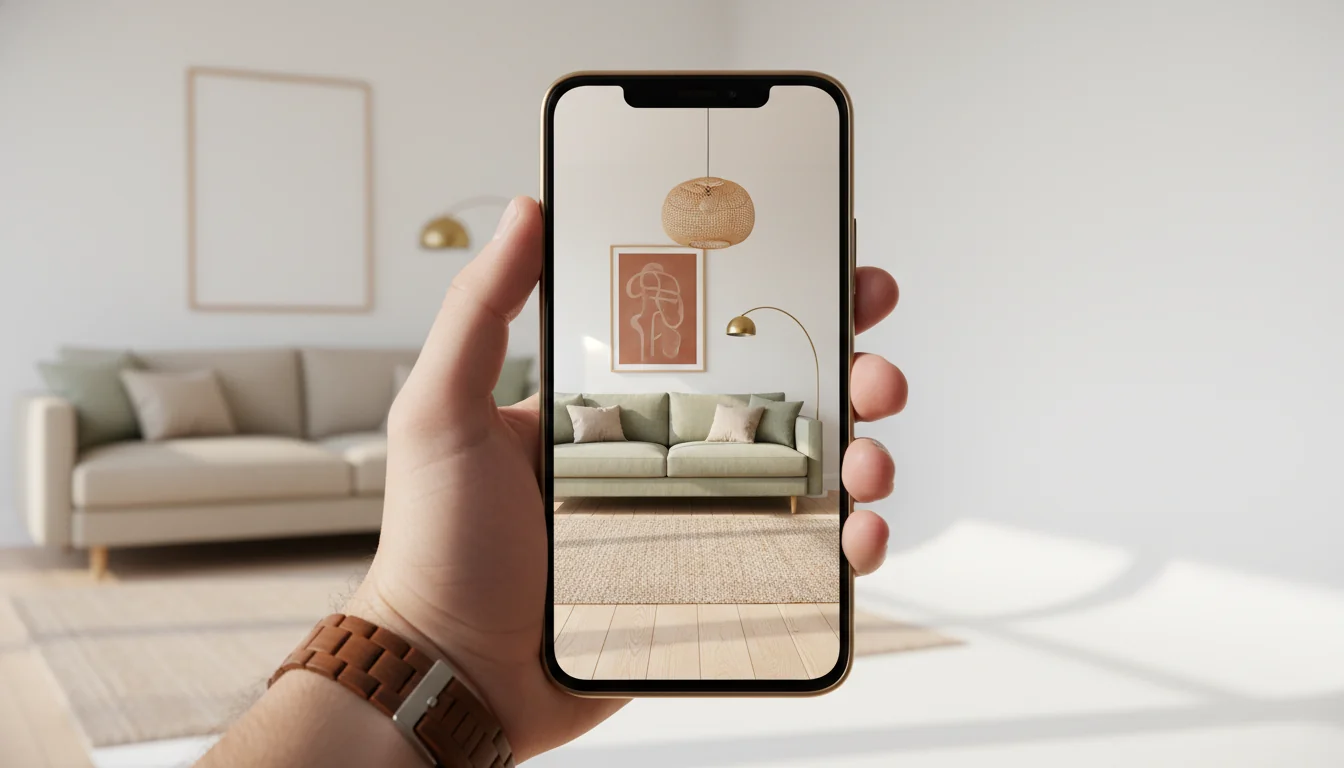
You’re sitting on the sofa, staring at the same wall you’ve been staring at for two years. The TV is fine. The coffee table is fine. Everything is fine — and “fine” is starting to feel like a verdict. You pick up your phone and wonder whether the tool you need is a tap away or whether you’ll have to borrow a friend’s iPhone.
It’s a tap away. The best AI interior design apps for Android in 2026 turn a single photo into photoreal room redesigns in under a minute, hand back a shoppable furniture list, and run on phones from a $300 mid-range to a flagship Pixel or Galaxy. You don’t need a top-tier device, a depth sensor, or any iOS lock-in. You need a decent camera, a network connection, and a few minutes to figure out which app fits the way you actually want to redecorate.
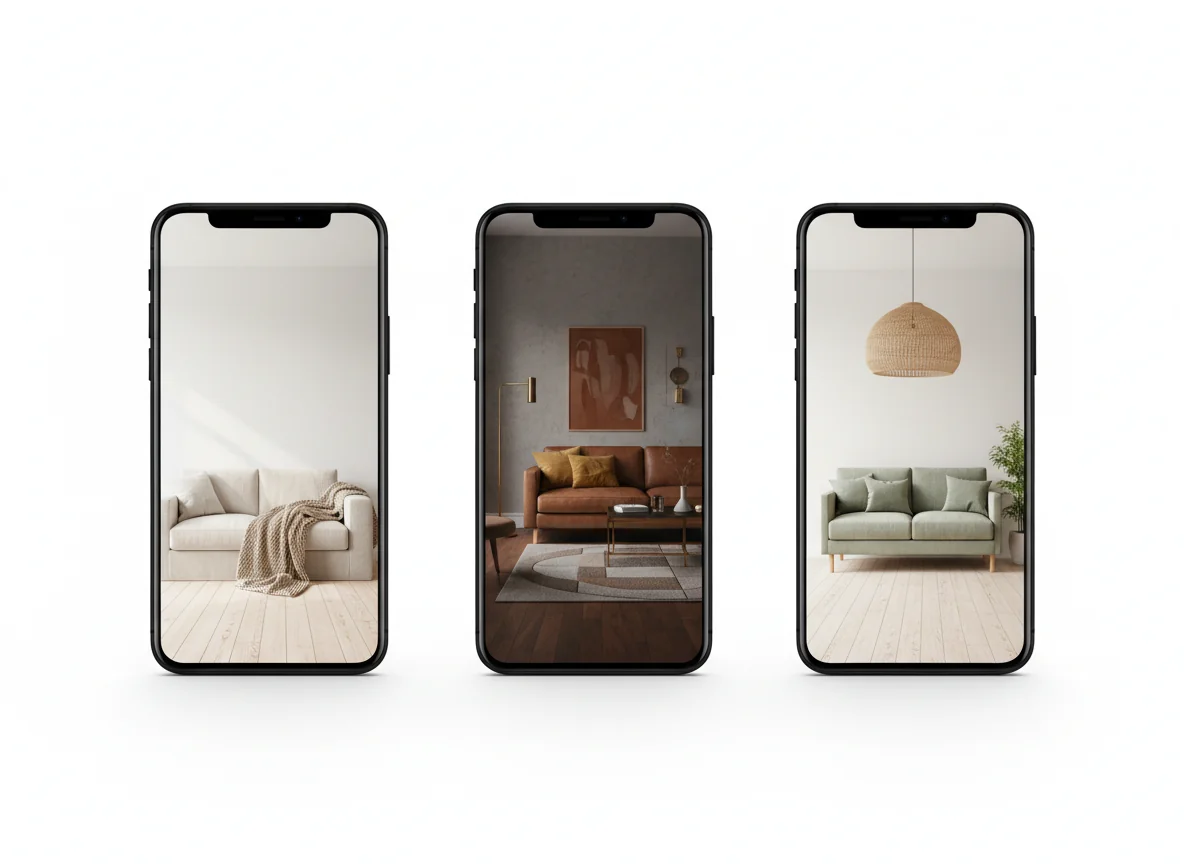
What is an AI interior design app for Android? An AI interior design app for Android is an Android app that takes a photo of a room and returns photorealistic redesigns in the styles you choose — Scandinavian, mid-century, Japandi, industrial, boho, coastal — usually with a shoppable list of matching furniture. The best apps run capture locally on your phone and rendering in the cloud, finish a room in 30–90 seconds, and let you compare multiple styles side by side. RoomGenius is one of the leaders in the category and ships natively on Android, with full support for everything from a Pixel 8a to a Galaxy S25 Ultra.
Android’s edge for AI design apps
Android often gets framed as the underdog in design tooling — fewer “creator-first” apps, less marketing, smaller ecosystems for niche categories. For AI interior design specifically, that framing is out of date. There are three real reasons Android is a strong fit for this category in 2026, and none of them require you to own a flagship.
The first is device diversity. Android runs on phones of every screen size, price point, and form factor — including foldables, which turn out to be unreasonably good for design work. A Galaxy Z Fold opened up gives you a tablet-sized canvas to compare three style variations side by side without scrolling. A Pixel Fold flips into a half-open “tent” pose that doubles as its own kickstand when you want to show a render to someone across the table. None of this is possible on iPhone.
The second is camera variety. Android phone makers experiment with cameras in ways Apple does not. The Pixel’s HDR+ pipeline is famously good in mixed indoor light. Samsung’s Galaxy series ships 200MP main sensors that capture wall art and fabric texture in detail the AI can use. OnePlus partnered with Hasselblad on color science; Xiaomi worked with Leica. Whichever Android phone you own, your camera is probably tuned for exactly the conditions a living room presents — uneven indoor light, mixed color temperatures, fine textures — and the AI redesign model has more good information to work with than it would on a generic phone camera.
The third is openness. ARCore — Google’s augmented reality framework — runs on hundreds of certified Android devices and gives apps real-time depth, plane detection, and motion tracking without requiring a dedicated LiDAR sensor. The redesign apps that use ARCore can capture room geometry on a $400 phone with no specialized hardware. Apple’s LiDAR is slightly more accurate, but it’s locked to Pro models. Android trades a small accuracy gap for a much wider device floor. For a platform-agnostic overview of what these apps actually do, our AI interior design app primer covers the category from first principles.
Room capture on Android: what works across devices
Most of the variance in your AI redesign output comes from the photo, not the model. A bad photo of a beautiful room produces a mediocre redesign. A careful photo of a plain room produces a striking one. The good news is that the rules are the same whether you’re on a Pixel 7a or a Galaxy S25 Ultra — and a few of them matter more on Android than they do elsewhere.
Stand in the corner, not the middle. Most rooms photograph best from a corner that catches two walls and the floor in one frame. The model uses the corner — the line where two walls meet — to lock orientation. A center-of-the-room photo gives the model one wall and a lot of ceiling, and ceilings rarely change in a redesign. A diagonal corner shot is the standard interiors composition for a reason.
Crouch slightly. Hold the phone at chest or hip height, not at eye level. Lower angles flatter rooms the same way they flatter people in photos — they emphasize floor, furniture, and the lower two-thirds of the wall, which is what redesigns actually transform. Eye-level shots put too much ceiling in frame.
Use the ultra-wide lens. Almost every modern Android phone — Pixel 6 and later, Galaxy S20 and later, OnePlus 8 and later, plus mid-range Motorola and Xiaomi devices — ships an ultra-wide camera. For small rooms, it’s the difference between “sofa, cropped” and “sofa, rug, and a hint of the next room.” The AI handles barrel distortion fine; it’s been trained on millions of phone photos with the same characteristics.
Daylight, not direct sun. Mid-morning or late-afternoon ambient light, blinds half open, no overhead fluorescents on. Direct sun creates blown highlights that even the best Android HDR pipeline can’t fully recover, and the AI model can’t reinterpret what it can’t see. Cloud-overcast days are surprisingly perfect.
Turn off “Scene Optimizer” and similar AI photo modes. Samsung’s Scene Optimizer, Xiaomi’s AI Camera, OnePlus’s AI Enhance — these features process your photo before you even see it, sometimes pushing colors that don’t reflect the room. Stacking two AI passes is how you get a sofa that looks like saturated cartoon plush. Drop into Pro mode, or just toggle off the auto-enhance option.
Tidy obvious clutter, ignore the rest. Pick up the laundry on the chair. Don’t bother fluffing cushions. The AI is reading composition and color, not a magazine shoot. A too-staged starting photo sometimes confuses the model into producing redesigns that look as performed as the input — the opposite of what you want.
Take three photos. Same room, three corners. The good apps let you upload all three and pick the redesign that lands best. The marginal cost is thirty seconds; the variance reduction is significant.
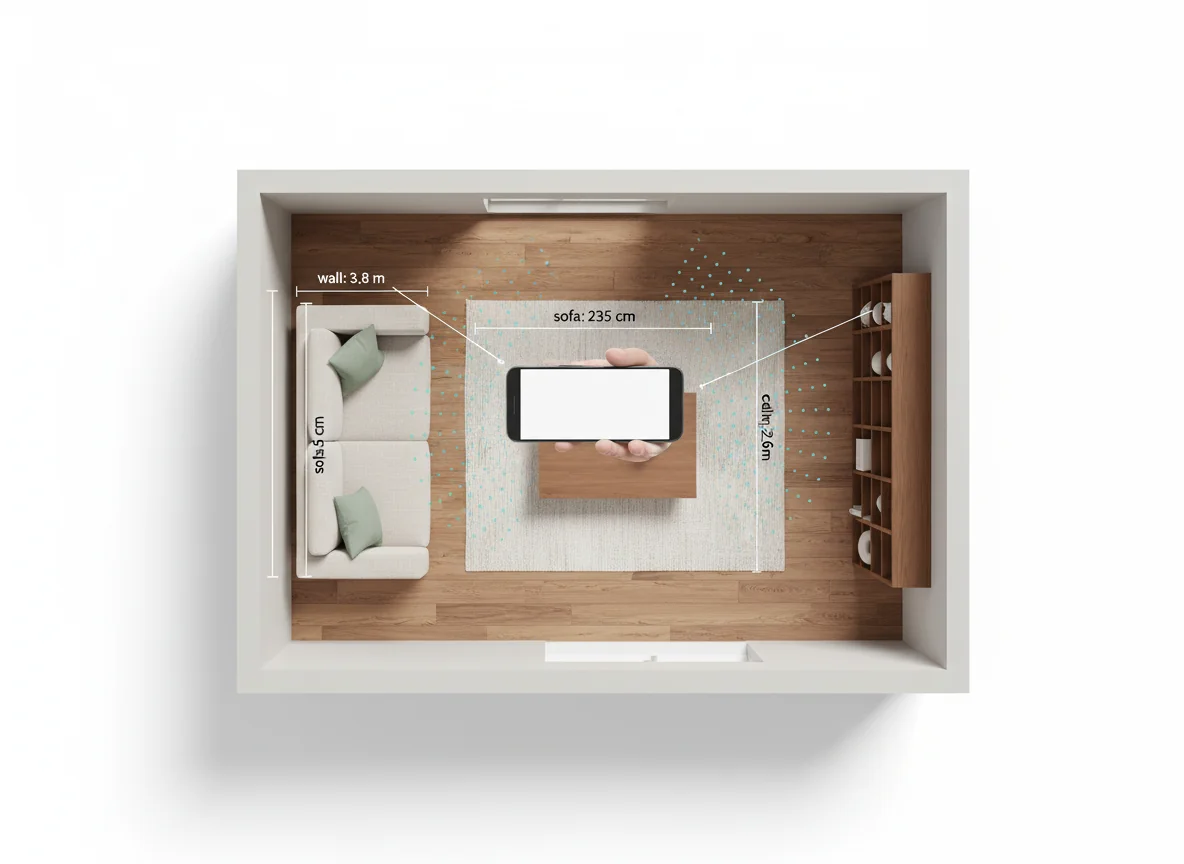
If your phone supports ARCore (most certified Android devices since the Pixel 3 and Galaxy S9 do — the ARCore device support list is authoritative), the apps that use it offer a “Scan Room” mode alongside the photo path. The scan walks you slowly around the room while ARCore builds a depth map. It takes 60–90 seconds, and the resulting redesigns are scale-correct rather than scale-inferred — the suggested furniture is sized to your actual sofa wall, not a guess.
Three Android AI interior design apps to know
The Play Store has dozens of interior design apps, and most of them are reskins of the same handful of underlying models. Three are worth knowing about as of mid-2026 — picked because each does something genuinely well, not because they’re the only ones in the category.
RoomGenius is the app this site is built around — disclosure upfront — but it’s also a true Android-native app, not an iOS port that grudgingly added a Play Store build. The capture path is camera-or-ARCore-scan (auto-selecting scan mode on supported devices), the rendering pass takes 30–60 seconds, and the output is up to four styles per scan with a shoppable furniture list under each. Foldable support is real — the UI re-lays-out for unfolded screens on Galaxy Z Fold and Pixel Fold — Material You theming respects your system color palette, and the Android share sheet lets you start a redesign from any photo in your gallery. Free to try, with paid tiers for higher render volume and 4K export.
Planner 5D is a long-running interior design app that added AI redesign in 2024 and has iterated since. On Android, Planner 5D is the strongest floor planner — its drag-and-drop interface is more polished on a tablet form factor than most iOS competition, and the AI rendering layer sits on top of an actual 2D/3D layout tool. Worth knowing about if your project is “I’m moving in three weeks and need to plan furniture placement,” not “I want to see what my current room could look like.” Laying out a floor plan on a 12-inch Android tablet is closer to how professional designers actually work.
Decor Matters is an Android interior design app with a large catalog of branded furniture (IKEA, Wayfair, West Elm, Crate & Barrel, others) you can drop into your scanned room and visualize against. The AI redesign feature is newer and less central than RoomGenius’s, but the catalog is the differentiator — if you want to know whether an IKEA Söderhamn fits your wall before ordering, this is the right tool. The render style leans “showroom catalog” rather than “magazine spread,” and the AR mode for placing single pieces in your real room is one of the better implementations on Android.
| App | Android strengths | Best for | Pricing model |
|---|---|---|---|
| RoomGenius | ARCore scan, foldable layout, Material You, fast render | Photo-to-redesign with shoppable furniture | Freemium with paid tiers |
| Planner 5D | Floor planner, tablet-friendly UI, AI render layer | Planning empty rooms or new spaces from scratch | Freemium with subscription |
| Decor Matters | Branded catalog (IKEA, Wayfair, West Elm), AR placement | Visualizing specific products in your room | Freemium with subscription |
For a wider comparison that includes mood-board apps, color tools, and paint matchers — categories adjacent to redesign that some Android users layer on top — our AI home design apps roundup covers the broader landscape.
Tips for great results on mid-range Android phones
Most Android users aren’t on flagships. The good news is that AI interior design apps were built with that reality in mind — the heavy lifting happens in the cloud, so your phone’s job is just to capture a clean photo and run a lightweight UI. A few specifics that make the experience meaningfully better on a $300–$500 device.
Skip night mode for room photos. Mid-range phones lean hard on multi-frame night mode in low light — great for selfies, bad for interiors. Night mode tends to lift shadows so aggressively that the AI loses the actual contrast structure of the room, producing flat redesigns. Either shoot in better light or use Pro mode and dial auto-exposure down half a stop.
Use Wi-Fi for the upload. A photo is 3–8MB on most modern Android cameras. That’s fine on cellular but sometimes triggers carrier compression that strips EXIF data the app uses for orientation. Wi-Fi sidesteps this and tends to make the round-trip 5–10 seconds faster anyway.
Pin the app’s quick action. Long-press the app icon and pin a “Redesign Last Photo” or “Start New Scan” shortcut to your home screen. This turns redesign into a one-tap action — the difference between using the app on impulse and saving it for later and forgetting.
Save renders to a Google Photos album. Putting renders in a dedicated Google Photos album makes them appear on every device you’re signed into — phone, tablet, laptop, smart display. Interior design is a conversation, and the conversation rarely happens on the device that did the rendering.
For Android users coming to redesigns for the first time — without much frame of reference for what photo-to-render apps even do — our design my room online walkthrough covers the end-to-end loop with example inputs and outputs that hold up across devices.
Privacy and photo handling
Photos of your home are personal data. They contain information about your layout, your possessions, your taste, sometimes your family — and uploading them to a cloud renderer means trusting an app with that information. The 2026 category norm has improved considerably from where it was three years ago, but the variance between apps is still wide. Three things to check before you commit to one.
Read the photo retention policy. “We delete uploaded photos after rendering” is the bar. Some apps default to keeping your photos to improve their model, with retention measured in months or indefinite, and the consent is sometimes buried. RoomGenius deletes uploaded photos after the render completes unless you explicitly opt in to retention. Check the current policy of any app before you upload anything sensitive.
Use the Play Store data safety section. Every app’s Play Store listing has a “Data safety” panel that shows what data is collected, why, and whether you can request deletion. It’s a fast way to compare apps without reading every privacy policy in full. The Play Store data safety documentation explains what each category means.
Crop sensitive content before uploading. If your room contains a workspace whiteboard, a child’s photo, mail with your address visible, or anything else you wouldn’t show a stranger — crop it out before uploading. Every Android gallery app has a crop tool. It’s the cheapest privacy upgrade you’ll ever do.
The throughline: assume the photo you upload will be seen by at least one human reviewer at some point in the app’s lifecycle (for moderation, abuse review, or training), and behave accordingly. The good apps minimize this; none of them eliminate it entirely.
Frequently asked questions
Do I need a flagship Android phone to use AI interior design apps?
No. Any Android phone from the last three to four years with a working main camera and a network connection will run these apps well. Flagships add ARCore depth scanning (which gives you scale-correct redesigns) and faster local rendering of preview thumbnails, but the actual AI rendering happens in the cloud — a $300 mid-range phone gets the same final image quality as a $1,200 flagship. The differences are in capture accuracy and UI smoothness, not in the redesign output itself.
What’s the difference between a photo redesign and an ARCore scan?
A photo redesign uses one or more 2D photos as input and infers room scale from visual cues — door height, window proportions, sofa size — landing within about 10–15% of true scale. An ARCore scan walks you slowly around the room and builds a 3D depth map, giving the AI exact measurements to work from. The redesigns from a scan are scale-correct (within 3% on most phones) and the suggested furniture is sized to your real wall, not an estimate. If your phone supports ARCore and the app offers the scan path, use it for any redesign you intend to actually shop from.
Are Android AI design apps as good as iPhone ones?
In 2026, yes. The category gap that existed in 2022–2023 — when most polished AI interior design apps shipped iOS first and Android months later, sometimes never — has closed. The major apps are now feature-equivalent on both platforms, and the underlying rendering models are platform-agnostic (they run in the cloud, not on-device). The remaining differences are at the edges: iPhone Pro models have slightly more accurate LiDAR depth than ARCore, while Android offers foldable form factors and a wider device floor. For the typical user, the apps perform identically on either platform. Our AI interior design for iPhone post covers the iOS side of the comparison if you’re choosing between platforms.
Can I use these apps offline?
Capture is offline — you can take the photo or run the ARCore scan with no network connection. Rendering is online; the AI models are too large to ship inside an Android app bundle, so the actual redesign happens on the app’s servers. Once a render is complete, the output is cached locally and viewable offline. If you’re on a flight, capture now and render when you land.
Will the AI suggest furniture I can actually buy?
Yes — the better Android apps return shoppable lists with real product links to retailers like Wayfair, IKEA, West Elm, Article, and Crate & Barrel. You’ll see a mix of price points, dimensions sized to your redesigned room, and direct purchase links. Furniture matching depth varies meaningfully between apps; if shoppable output is what you care about, test it on each before committing to a subscription.
Open the Play Store. Redesign your room.
If you’re on Android, the gap between “I’m tired of this room” and “I have three styled redesigns and a shopping list” is now about ninety seconds. Open the camera, take a corner shot, run it through an AI interior design app — RoomGenius if you want the Android-native option with ARCore scanning and foldable support, Planner 5D if you’re starting from a floor plan, Decor Matters if you want to visualize specific branded furniture before you buy. Try a few. The good ones reveal themselves fast. Download RoomGenius for Android on Google Play, point your phone at the wall you’ve been ignoring, and see what your room could be.