AI Home Office Design: Turn Any Corner Into a Workspace
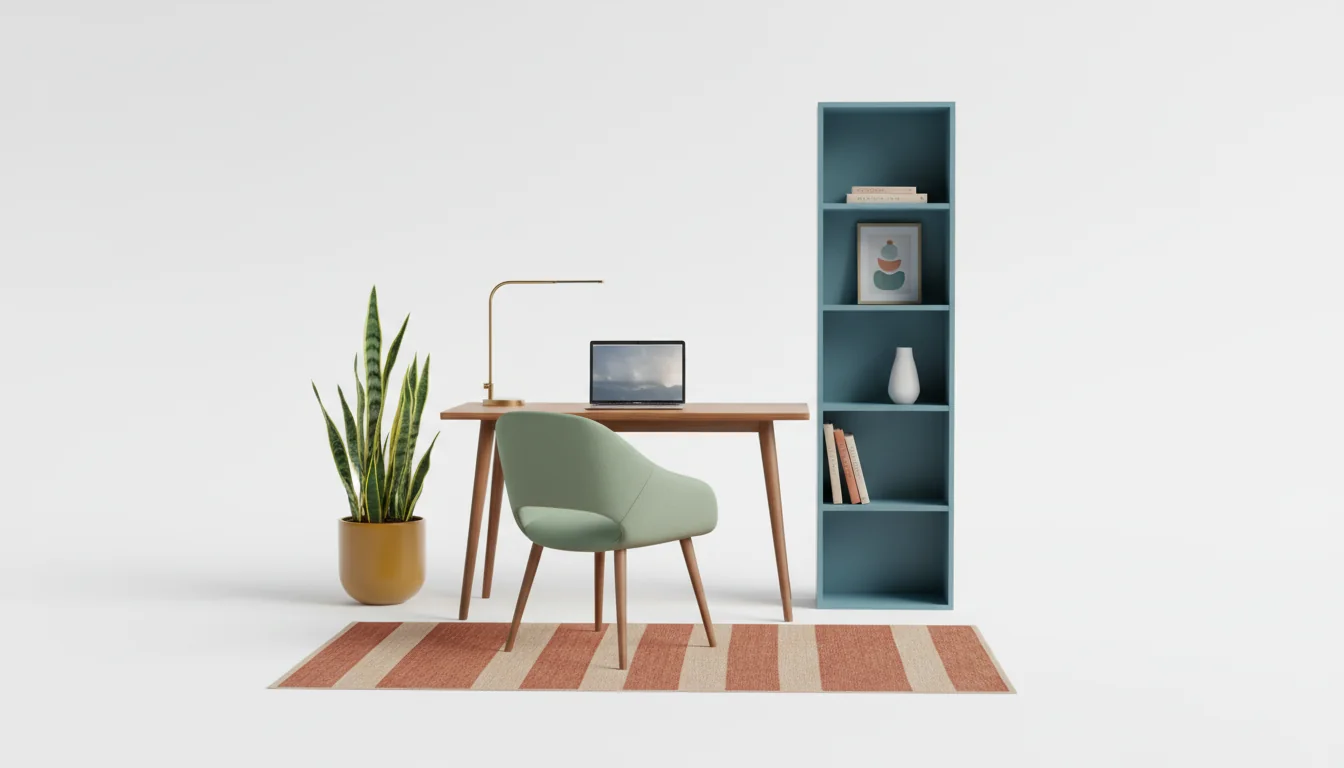
Home offices have a durability problem. Most people set one up in a weekend and quietly start hating it six months later — the chair is wrong for the desk, the desk is wrong for the wall, the wall faces a window that blows out every video call after 2 p.m. By month nine, the room is a hybrid of dropped Amazon boxes and abandoned ergonomic experiments.
AI home office design is the cheapest way to break that loop. Upload a photo of the room, the alcove, or even the closet you want to convert, and a modern AI interior design app renders the same square footage back to you with a real workstation in it — desk scaled to the wall, chair scaled to the desk, lighting scaled to your camera, storage scaled to what you actually own. You preview five layouts in the time it would take to drive to one furniture showroom.
This guide walks through why home offices age badly, what AI home office design actually reads in your photo, the small-footprint patterns that survive daily work, the guest-room hybrid most apartments need, the lighting moves AI gets surprisingly right, and the unglamorous decor decisions that keep the office looking like a room six months in.
What is AI home office design? AI home office design is a photo-to-render workflow that takes a picture of your existing room or corner and generates styled workstation previews — desk, chair, storage, lighting, decor — usually in under a minute. The better apps return shoppable furniture matches alongside the render, so the preview becomes a buy list scoped to your actual space rather than someone else’s Pinterest board.
The “Good Enough” Home Office Trap
The dominant home-office failure mode is not bad taste. It is over-confidence on day one. Someone clears a corner, orders a 60-inch desk and a mesh chair, plugs in a monitor, and declares the office done. Three things then go wrong on a predictable schedule: in month one the desk depth turns out to be wrong for the chair recline, in month three the monitor faces a glare-prone window, and by month six the bookshelf two feet behind the chair is full of unrelated household objects because nobody designed the storage around the work.
Each of those mistakes was preventable at the layout stage. None of them were obvious before the furniture was in the room. AI home office design catches the geometry-and-light failures because it renders the combination — desk plus chair plus window plus camera angle — instead of asking you to imagine each piece in isolation.
A useful frame: most rooms get designed once and finished. Home offices need to be re-evaluated quarterly because the work itself changes. You added a second monitor, moved to four daily video calls, started a project that needs a vertical secondary screen, took on a kid doing after-school homework on the same desk. None of those changes were forecastable on day one, but each invalidates a layout decision.
The 2025 American Community Survey put U.S. work-from-home rates at roughly one in five workers, with hybrid arrangements covering a much larger share. That is a long-running shift, not a pandemic blip. The home office is a load-bearing room now — and it deserves the same iterative previewing the rest of the house already gets.
What AI Gets Right About Workstation Ergonomics
A modern home office AI render is not just a pretty picture. The good models read four classes of element in your photo, scale them against each other, and re-render the workstation around the constraints they detect.
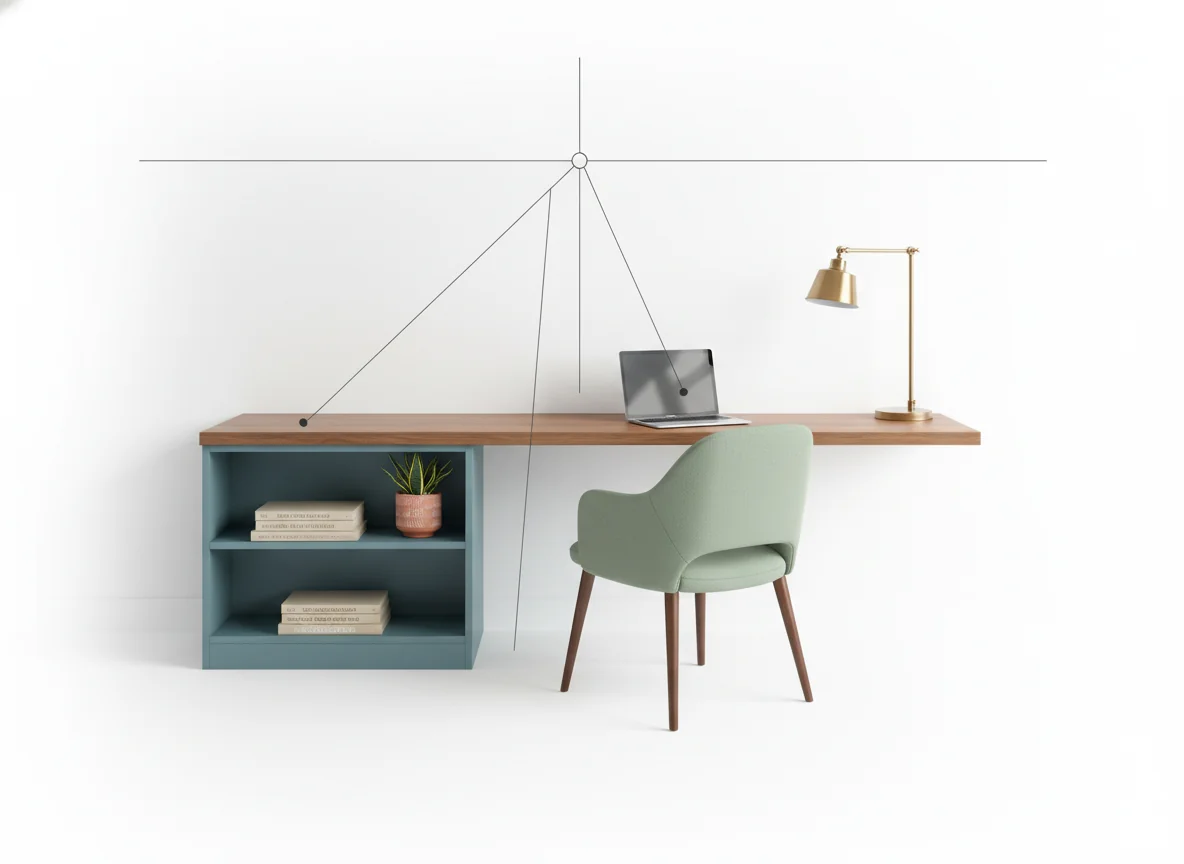
Desk-to-wall fit. The model measures the run of wall you have available and the depth from the wall to the nearest traffic path. It will not place a 72-inch executive desk against a 48-inch wall. It will, in many cases, recommend a corner or wall-mounted writing surface for narrow alcoves where a freestanding desk would block circulation.
Chair-to-desk geometry. The render previews chair scale against desk height, including the under-desk knee clearance. A 30-inch desk paired with a high-backed task chair often fails this check — the AI will downsize the chair or raise the desk. Standing desks render with the standing height pose by default, which is the right comparison for the conversion question (do you actually want a sit-stand setup in this room, or just a fixed-height desk?).
Monitor and camera angle. The model places the monitor relative to your visible window and overhead light. It will not propose a workstation that puts a bright window directly behind the camera. Many apps now flag video-call lighting in the prompt response — a quiet feature, but the one most often praised by remote workers who switched after a year of being a silhouette on every standup.
Storage proximity. Books, files, and active project materials get rendered within arm’s reach of the desk, not on the far wall. This sounds obvious; it is the single most common oversight in a self-designed home office, where the bookshelf inevitably ends up where it fits aesthetically rather than where you can grab a binder mid-call.
A few things the AI still does not handle well. It does not know your back, and it cannot certify a chair as ergonomically appropriate for your specific body — that is what the BIFMA ergonomic seating standards exist for, and a render is no substitute for actually testing the chair. It also flattens treadmill desks and articulated monitor arms into static objects. Treat ergonomics renders as a starting brief, not a medical recommendation.
Small-Footprint Home Office Ideas
Most home offices are not rooms. They are corners of bedrooms, halves of dining rooms, alcoves under stairs, or repurposed closets. A small-footprint AI render will give you a workable layout in any of them, but the patterns that succeed differ by which footprint you have.
| Footprint | Typical depth | Best-render workstation pattern | Common mistake the AI catches |
|---|---|---|---|
| Bedroom corner | 36–48 in | Wall-mounted floating desk + slim task chair | Oversized credenza that blocks the closet swing |
| Dining-room half | 60–96 in | Console desk against the back wall, chair tucks fully | Permanent monitor stack that breaks the dining read |
| Alcove / under-stair | 30–42 in | Built-in or fitted desk shelf, narrow rolling cart | Standard 30-in chair that hits the slope on recline |
| Closet “cloffice” | 22–30 in | Pull-out keyboard tray + wall-hung monitor, fold-back chair | Storage above the head that produces zero shelf depth |
| Spare bedroom | 96+ in | L-desk in the long corner, second chair for video calls | Treating the spare bed as decor instead of dual-use |
A few patterns worth previewing in any small footprint:
- Wall-mounted desks read as architecture instead of furniture — the difference between a corner that disappears into the room and one that announces itself as “the office.” AI renders them cleanly because the geometry is constrained by the bracket spacing.
- Vertical storage keeps the desk surface clear and is the simplest trick to make a small office feel intentional. A single tall shelving unit usually beats two short ones in a render and in real life.
- A folding or stowable chair for video-call partner sessions or a kid doing homework. The AI will render a second seat only if you prompt for it.
- One generous accent — a warm-toned rug, a sculptural lamp, a single piece of art. That one element is what stops the room from reading as a corporate cubicle.
Our best furniture for small apartments post catalogs the dual-use pieces that show up most in small office renders, and the how to decorate small spaces breakdown covers the visual tricks that make any footprint feel larger.
Shared Home Office and Guest Room Hybrids
The most common request from parents and apartment dwellers is the same: turn the spare bedroom into a working office without losing the spare bed. The conventional solution — a bulky daybed plus a mismatched desk shoved against the opposite wall — is the layout most often regretted.
AI home office design unlocks two better patterns here.
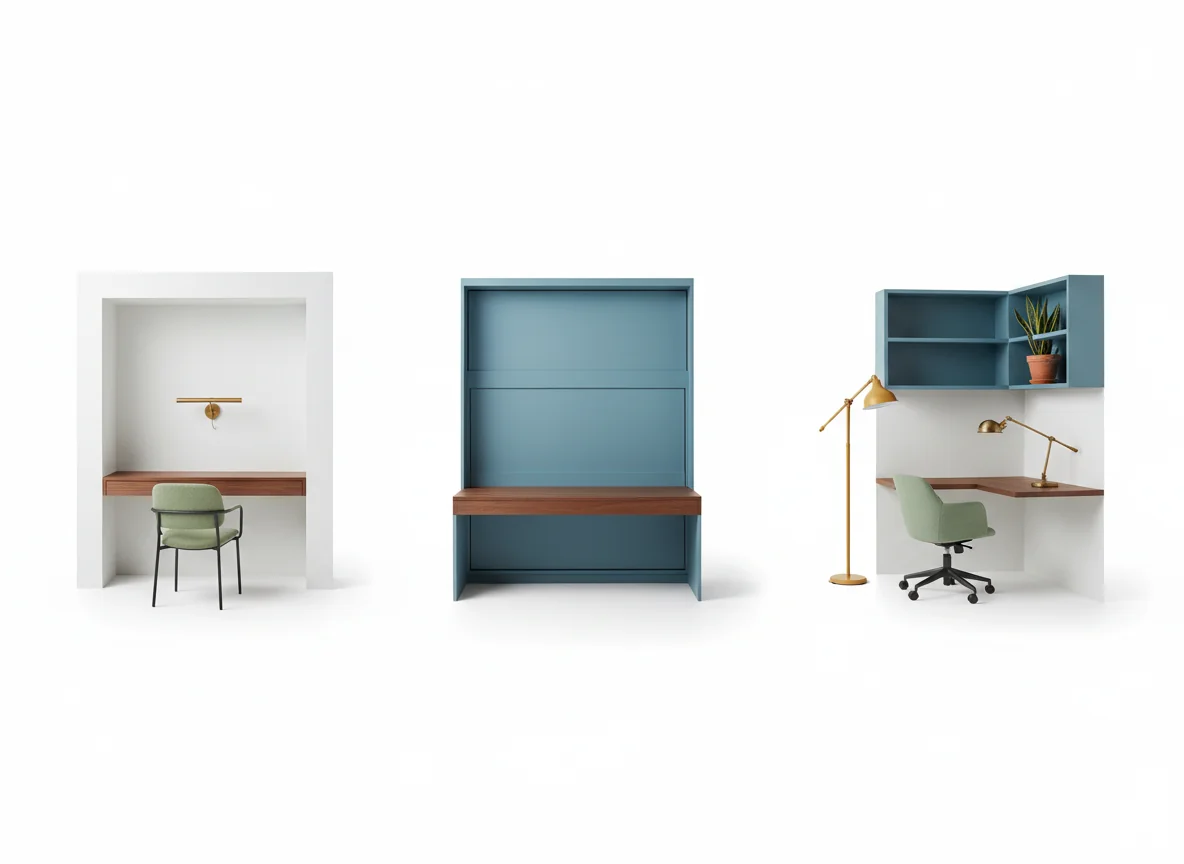
Murphy-bed-plus-desk wall. The Murphy bed comes down only when guests visit; the rest of the year, the wall is your desk surface, your shelving, and your monitor. Renders for this pattern look credible in 2026 because the manufacturers have caught up — there are several mid-priced systems with integrated desks that fold away cleanly. The AI will preview the room in both modes (bed up, bed down), which is the only way to evaluate whether the room actually works as both.
Sleeper sofa as second seat. A sleeper sofa or daybed against the long wall doubles as the video-call backdrop and as the guest bed. This pattern beats the daybed-plus-desk arrangement because the sofa visually anchors the room as a living space first and an office second — which keeps the room feeling like a room. The AI will render the sofa with throw pillows that read on camera, which is a small touch but a real one.
A few prompt-level tips that improve hybrid renders:
- Tell the app the room is dual-purpose. “Home office with guest sleeping function” gets a more honest render than “home office” alone.
- Specify which mode is the default. If the bed comes out four times a year, the office is the primary brief and the sleeping function is the accommodation.
- Avoid corporate cabinetry. It will look fine in the render and feel like a back-office in three months. Soften with woven baskets, fabric storage, and a real lamp.
For the team-collaboration version of the same problem, our conference room setup ideas post covers how dual-use logic plays out in shared workspaces — many of the patterns translate down to a home setting.
Lighting an Office AI Actually Recommends
Lighting is the variable home offices fail on most often and AI catches most reliably. The reason is that light has to do three jobs in a workstation simultaneously — task light for reading and writing on the desk, ambient light for the rest of the room, and key light for your face on video calls — and a single overhead fixture cannot do all three.
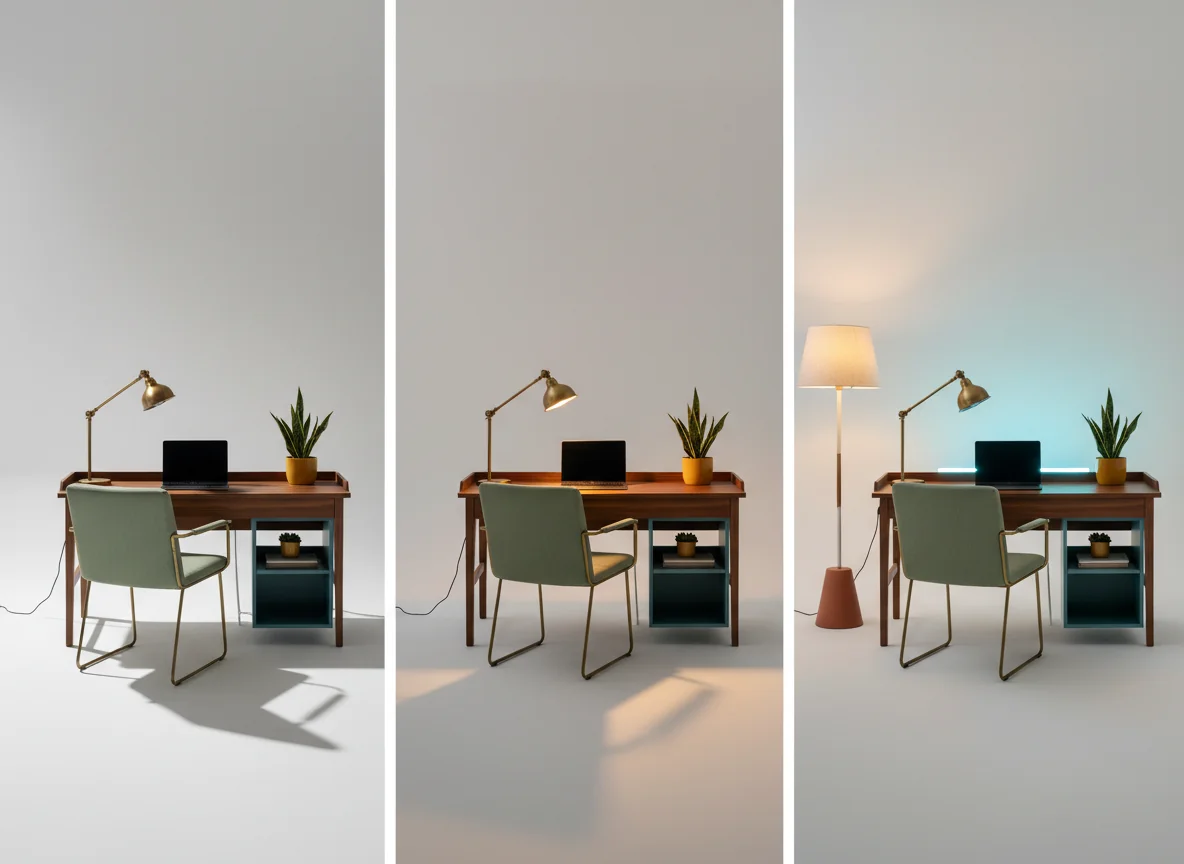
A reliable AI-render lighting brief layers the office in three:
- Bias light or ambient backdrop. A warm-temperature lamp in the corner behind the chair, or a thin LED strip behind the monitor. The job is to keep the camera background from turning into a black void on a video call. The AI will render this as a soft glow behind the chair — that is the cue.
- Key light from a soft front-side source. A diffused desk lamp or a window at 45 degrees to the camera. The AI will not render a ring light (the optics are wrong for a still image), but it will render a single articulating swing-arm lamp on the desk, which is the better permanent solution anyway.
- Task light for the desk surface. A second small light dedicated to the work surface, separate from the key light. This is the layer most home offices skip, and the layer the AI render will show is missing the second you prompt for “evening work session” instead of “morning workspace.”
Color temperature matters more than people expect. The general guidance from the Illuminating Engineering Society puts task lighting in the 3500K–4000K range for sustained focus work, with warmer 2700K–3000K ambient layers to keep the room from feeling clinical. AI renders default to warm light, which is flattering but often under-lights the work surface. Prompt explicitly for “neutral 4000K task light over the desk” if you want a render you can buy from.
Cable Management and Decor That Keeps the Room a Room
The unglamorous half of home office design is the half that determines whether the room still looks like a room in six months. Cables, acoustics, and a small number of decorative anchors do the heavy lifting here, and AI renders are useful precisely because they show what these decisions look like together.
Cable management. Render with a cable tray under the desk, a single grommet hole in the surface, and a power strip mounted to the back of the desk frame. Without these, every workstation render looks tidy in the AI preview and chaotic in real life within a week.
Acoustic softening. Hard-surfaced rooms are bad for video-call audio. The render will not tell you this, but the layout will: a rug, a fabric chair, a curtain, and a bookshelf full of books are the four objects that make a small office sound less echoey. Aim for at least three of the four.
Plants. A single tall plant in the corner does more for the camera background than any wall art. The AI renders snake plants, fiddle-leaf figs, and ZZ plants reliably; it tends to over-render trailing shelf plants into something staged. Stick to one or two anchor plants rather than a wall of foliage.
One non-work object. A framed print, a small piece of pottery, a stack of three paperbacks. The single decorative element that has nothing to do with work is what keeps the office from feeling like a corporate satellite. The AI will leave it out unless you prompt for it; prompt for it.
We have watched home offices that follow this list still look identifiably like the rest of the home, which is the actual goal. A workstation that disappears into the room when you stand up is one you will keep working at.
Frequently Asked Questions
Is AI home office design free?
Most AI interior design apps, including RoomGenius, offer a free tier that covers a typical home office refresh — three to five renders across two layouts is usually enough to lock the major decisions. Paid tiers unlock higher-resolution renders, more style options, and unlimited generations, which becomes useful if you are previewing a hybrid room or iterating across several footprint options before committing to a desk.
How accurate are AI home office renders for tight spaces?
Accurate enough to compare layouts and ballpark furniture scale, not accurate enough to replace a tape measure. In a small corner office or a closet conversion, you should still measure the wall run, the door swing, and the under-desk knee clearance before ordering. The AI will catch most layout failures — wrong-depth desk, blocked closet, misaligned monitor — but the final inch of fit is on you.
What is the best photo to upload for AI home office design?
A daylight photo from the doorway, taken at standing eye level, with the floor visible and at least one window in frame. Include the wall you intend to put the desk against, even if it is currently empty. A single clean photo produces better renders than several busy ones, because the model has less geometric noise to reconcile. Avoid ultra-wide phone modes; they distort the wall lengths.
Can AI home office design handle a closet conversion or “cloffice”?
Yes, and this is one of the use cases where AI is most useful. Closet conversions have such tight constraints that ordering the wrong desk depth ruins the project. Tell the AI the room is a closet and provide the interior dimensions in the prompt — “cloffice, 28 inches deep, 60 inches wide, single door removed.” The render will scope the desk surface, monitor placement, and chair pull-out distance to the actual cavity.
Does AI home office design work for shared workspaces with kids?
It works for any dual-use room as long as you tell the app upfront. A shared home-office-and-homework-corner renders best when prompted as “shared office for one adult workstation and one child homework station.” The AI will downsize the desk in favor of two seats, suggest a wall-mounted secondary surface, and choose softer storage that hides the after-school chaos. Without that prompt, the render will assume a single-user adult office.
How long does an AI home office render take?
Thirty to ninety seconds per render on a modern phone. A full session — uploading the photo, generating four layouts across two styles, and tapping through the shoppable furniture — typically takes under fifteen minutes. That compares to the two to three weekends a traditional plan-and-shop process takes to assemble.
Can I share AI home office renders with a partner before buying?
Yes, and this is where the technology pays for itself. Sharing two or three renders with the person you live with resolves more layout disagreements than a month of debate, because you are reacting to the same specific room rather than two different mental images of an “office.” The render is also a useful brief for a contractor if you are doing any built-in millwork.
Design a Workspace That Still Looks Like a Room
If you are setting up a new home office or rescuing the one you put together a year ago, the cheapest first move is to preview it. RoomGenius takes a single photo of your actual corner, alcove, or spare room and returns styled workstation redesigns side by side, with shoppable furniture you can buy without leaving the app. Stop committing to a desk based on a product photo from someone else’s apartment — see it in your own room, against your own wall, in your own light, before the box ships.
Download RoomGenius on the App Store or on Google Play, snap your workspace, and pick the layout that finally looks right.